Screen time · 4 min read
How to stop tapping “Ignore Limit” on iPhone
A Screen Time limit is easy to skip by design. Here is how to make the skip harder, and what to do when a harder limit is not enough.

The short version
By default, an iPhone app limit is a reminder that you can skip with one tap. Set a Screen Time passcode and turn on blocking so the skip takes effort. Then decide in advance what you will do when the limit arrives.
The limit is a reminder, not a lock
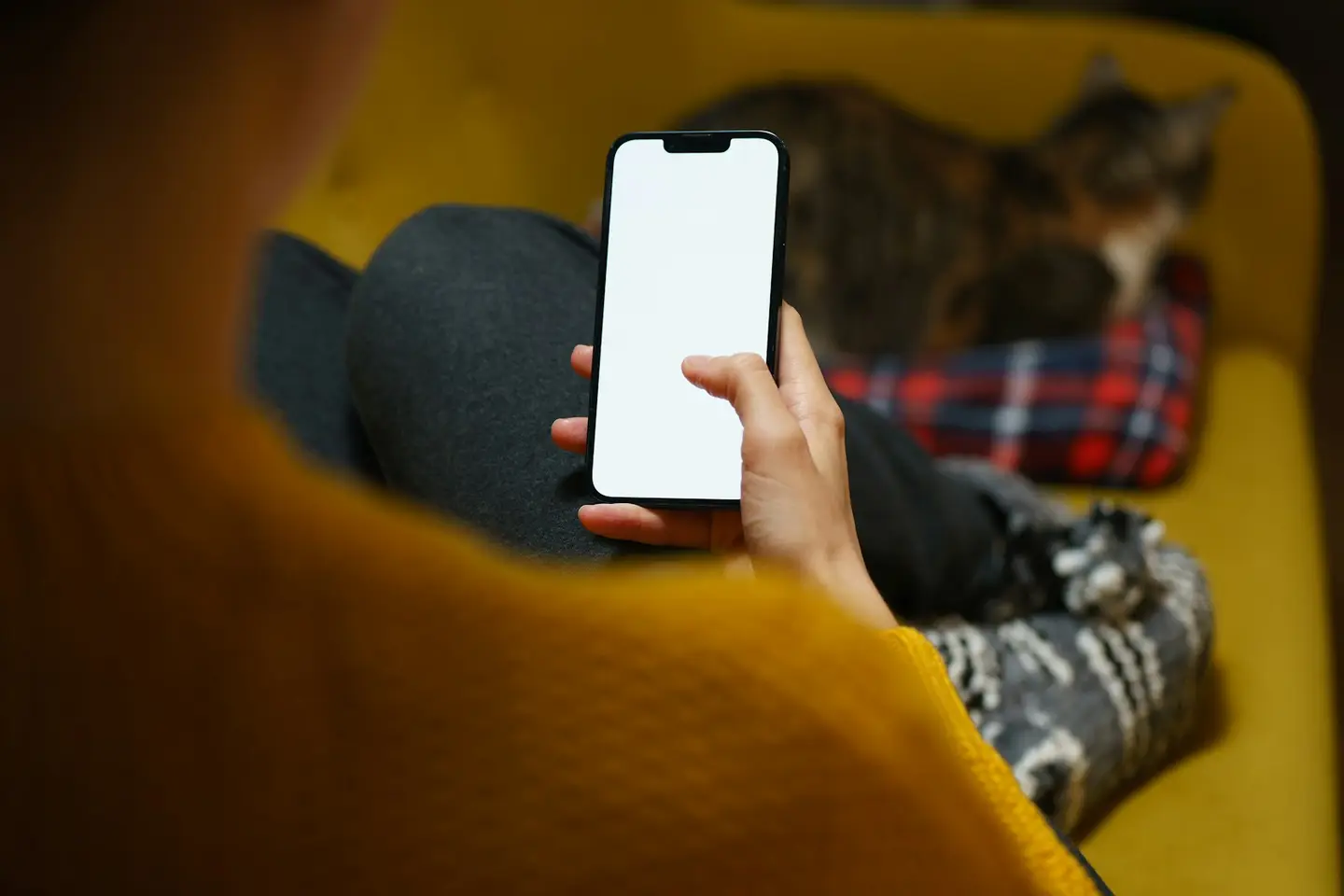
It is late in the evening. A message says you have reached your limit for today. One tap later, the app is open again. You did not really decide to skip the limit. Your thumb got there first.
That is how the feature is built. It says nothing about your character. Apple’s guide for iOS 26 states that, by default, Screen Time limits can be ignored once they are reached. You see a reminder, and you can choose to continue.
A reminder is enough when you only lost track of time. It is less help when the pull of the app is stronger than one message. In that case, the skip needs to cost more than one tap.
Make the skip take more than one tap
Apple’s answer is a Screen Time passcode. It is a four-digit code that you enter before you change the Screen Time settings you chose for yourself. Apple’s guide says that with a passcode set, you can choose whether apps are fully blocked or only dimmed during downtime.
The steps below use the names from Apple’s guide for iOS 26. In iOS 27, Apple’s guide uses the names Screen Time Schedule and Time Allowances instead. Menu names can vary by iOS version, so test the result on your own phone before you rely on it.
- Open Settings, then tap Screen Time.
- Create a Screen Time passcode. Make it different from the code that unlocks your phone.
- Tap Downtime, then turn on Block at Downtime.
- Let a limit run out once, and check what your phone shows now.
You chose the code, so you can still get in
On your own phone, you know the passcode. The block does not stop you. It adds a pause, and a pause can be enough to notice what you were about to do.
If you want more distance, ask someone you trust to choose the code and keep it. Think about this before you do it. You will need that person each time you want to change a setting. Apple’s guide also describes a recovery option that uses your Apple Account if a code is forgotten.
Keep the things you need outside the limit. Apple’s Always Allowed list keeps chosen apps and contacts available at all times. Calls, maps, banking, and anything you use for work or for care should stay within reach.
Decide now what happens when the limit arrives

A harder skip gives you a few seconds. Use them for something you chose earlier. Write one sentence and keep it where you can see it: “When the limit appears, I will put my phone on the shelf and read one page.”
Make that next step easy to start. Leave the book where you sit in the evening. Move the charger across the room. A small action that is ready to go is easier to choose than an empty moment.
If the limit keeps arriving at a bad time, it may be too short for your real day. Change the number. A limit you can keep on an ordinary day is more useful than a strict one you skip every night.
How Unhaze handles the same moment
Unhaze starts from the other side. You do something offline, tap done, and earn coins. During the spend windows you choose, you can use those coins for time on your selected apps. Coins do not expire.
If you end a work window early, there is a 2-minute pause before unlocking, and you can go back to your window. The app is still on its way. Tonight, a passcode and one sentence about your next step are a good place to start.
Sources & reading notes
These sources support the specific background points noted below. The practical suggestions and examples are Unhaze’s editorial guidance.
- Apple: Set schedules with Screen Time on iPhone (iOS 26)
For limits that can be ignored by default, Block at Downtime, and Always Allowed. Menu names can vary by iOS version. - Apple: Create, change, or remove a Screen Time passcode on iPhone
For the Screen Time passcode and passcode recovery. This page follows the newest iOS version.
Prepared with AI assistance for Unhaze. No medical claims or Unhaze effectiveness results are implied. Read our editorial approach.